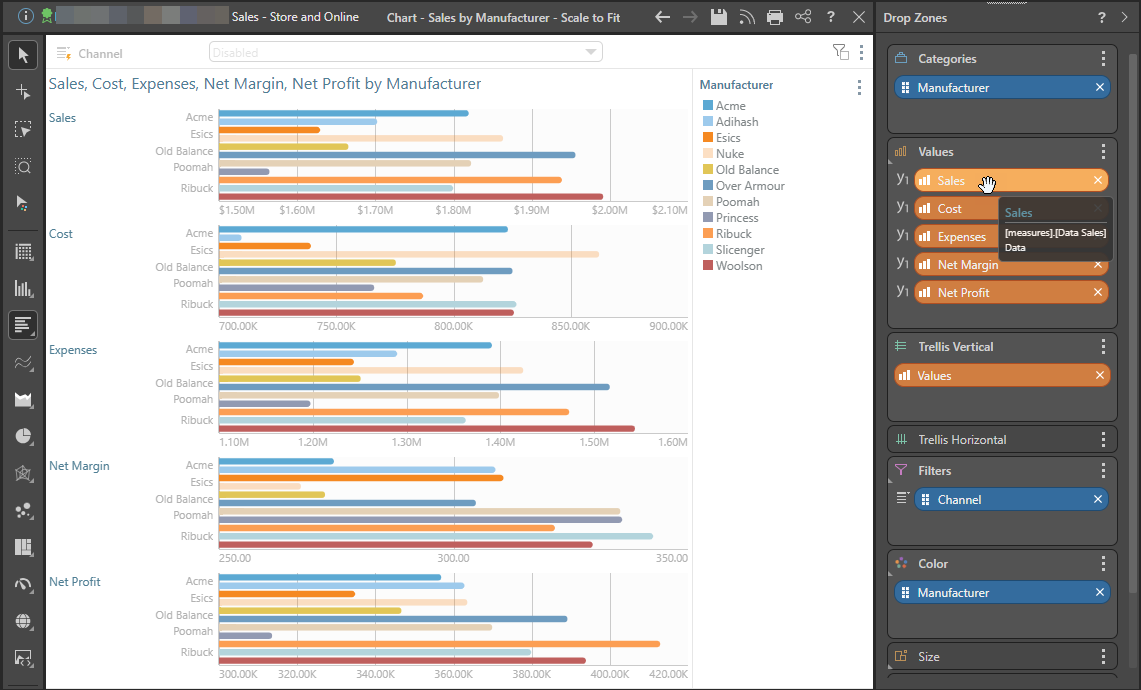
When a visualization is larger than the canvas, the Scale to Fit option can be used to scale the visual down to fit on the canvas. This is useful when working with grids or trellised charts that are too large to fit on the canvas, but small enough to be readable when scaled down.
Note: If the visualization is too large to be scaled down to fit onto the canvas, you will receive an error message.
Scaling the Visualization
Grid

Column Chart
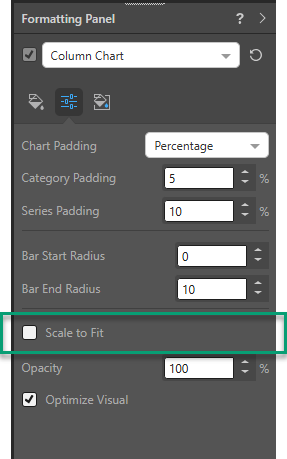
Toggle the Scale to Fit button from the Settings tab in the chart's formatting panel. Click once to scale down; click again to revert to full scale.

Formatting Panel
When working with trellised Cartesian charts, the Scale to Fit function is also exposed from the chart's Formatting panel:
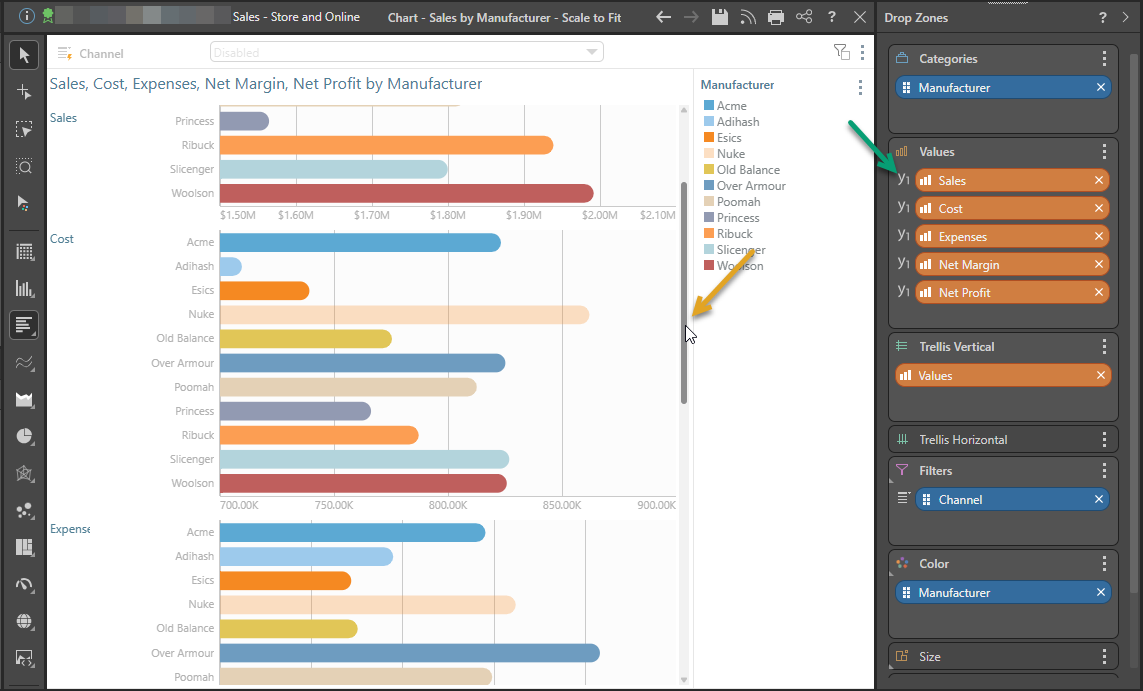
Example Bar Chart Scale to Fit
In this example, the bar chart is trellised by five values (green arrow below). The charts do not fit onto the canvas, so the scroll bar (orange arrow) must be used to view the lower charts.
However, when the Scale to Fit button is enabled, all five charts are scaled down to fit onto the canvas: